 Tuckly
Save text
- Select text on any website with your mouse.
- Right-click → hover Tuckly – Save Text ▸ → click Save Text. Done — a “Text saved ✓” card confirms it.
- Or press Ctrl + Shift + S (Mac: ⌘ + Shift + S; Firefox: Alt + Shift + S).
The submenu has everything: Save Text, Save with note…, Save to folder ▸ and Save this page link. Right-click a link or image to save it.
Want a single click instead? Settings → Saving → One-click “Save Text”. (Browsers only allow one item directly in the right-click menu, so it’s either the submenu or the single item.)
Add a note or folder
- From the right-click submenu: Save with note… or Save to folder ▸.
- Or after saving: on the “Text saved” card click + Note or Folder ▾.
- Create folders in the library with + Folder. Add tags while editing a snippet (✎).
Find text & switch views
- Click the Tuckly icon in the toolbar. Type in the search box (press / to jump there).
- Simple view (☰): only your saved text in a clean list — full text, no buttons. Select with the mouse and copy as usual. Great when you have a lot saved.
- Premium view (▤): cards with source, notes, tags, folders and all tools.
- Tabs sort everything automatically: All · Text · YouTube · Images · ChatGPT · Claude … Click + to add tabs like Docs, Sheets, Mail, Gemini, GitHub, Reddit. Each tab has its own categories.
- Side panel (▯) keeps your library open next to the page. Full library (⤢) opens a big view.
- From the address bar: type snip, press Space, then your words.
Save videos (YouTube, Twitch & more)
- Open Settings → Video platforms and switch on Save button on site for YouTube (or Twitch, Vimeo…). Your browser asks permission for that site — click Allow.
- Open any video. A Tuckly button appears next to YouTube’s own Save button (on other sites it floats at the bottom-left).
- Click it → pick a category (or type a new one and click + Add) → Save. Tick “Save the moment” to reopen the video exactly where you were.
- Find your videos under the YouTube tab (or any platform tab) in the library. Categories you create there only appear in that tab, so tabs stay tidy.
No button needed? Right-click an empty part of any page → Save this page link. Categories are the same as folders, so they also work for text.
Copy, cite & share
- Copy (⧉) copies the text. Cite (“) copies it as a Markdown quote, APA or MLA citation.
- Open (↗) takes you back to the page and highlights the exact passage.
- Share sends a snippet to WhatsApp, X, email and more.
Delete — two ways
| 🗑 | Remove from extension Hides it here but keeps it in your Google Drive. Find it under Kept in Drive and restore any time. |
| 🗑☁ | Delete everywhere Deletes it from the extension and from Google Drive. |
Every delete has Undo for a few seconds. Without Drive connected there’s a single delete button.
Google Drive backup
- Settings → Connect Google Drive → choose your Google account.
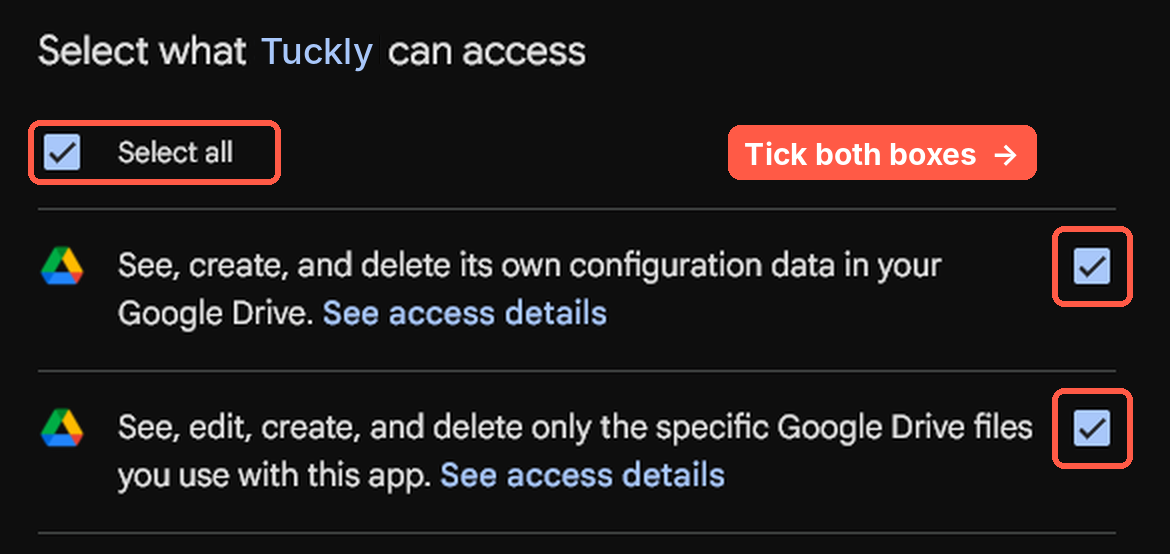
- Google asks what Tuckly can access: tick both boxes (or “Select all”) → Continue.
- Saved text is stored instantly on your device, then backed up to Drive about 1 minute later.
- Open the Tuckly folder in Google Drive to read everything as a Google Doc — on any device or phone.
🔒 We can’t see your Drive. The developer of Tuckly has no access to your Google Drive or your saved text — it goes straight from your browser to your own Drive. The two boxes are the basic permission any app needs to save files in Drive: box 1 keeps a hidden backup (to restore later), box 2 creates the visible “Tuckly” folder. Tuckly can only see files it creates — never your other files.
The badge at the top of Tuckly shows: Synced (all backed up) · Sync pending (uploading soon) · Sync failed (offline or sign-in expired).
Sync failed? Don’t worry. Your text is safe on this device and uploads automatically when the connection is back. Click Retry to try now.
Keyboard shortcuts
| Save selected text | Ctrl Shift S |
| Open side panel | Alt Shift S |
| Search in library | / |
| Save note / edit | Ctrl Enter |
Change them in Settings → Shortcuts.
FAQ
Nothing happens when I right-click → Save Text
Browser pages (like the settings page, the extension store or some PDFs) don’t allow extensions. Try a normal website. If the toolbar icon shows a red “!”, the page blocked saving.
Where is my text stored?
In this browser on your device, and — if connected — in your own Google Drive. Never on our servers. We can’t see it.
Will I lose my text if I uninstall?
With Google Drive connected: no — reinstall, connect the same account and it all comes back. Without Drive: yes, so use Settings → Export first.
Can I use it on another computer?
Yes. Install Tuckly there and connect the same Google account.
Can I save passwords?
Please don’t. Tuckly is for quotes, notes and ideas — not passwords, card numbers or login details.